




Most IT teams already know when something breaks.
The real problem is making sure the right person responds fast enough.
A server goes down. A customer-facing application crashes. A security alert triggers after hours.
The monitoring system sends the notification.
But nobody responds.
The alert gets buried in Slack. The on-call engineer misses the push notification. The wrong person is scheduled. Everyone assumes somebody else is handling it.
That is how small incidents become expensive outages.
And it is why modern operations teams need escalation processes that actually work.
The Problem With Most Escalation Processes
Many organizations still rely on:
- Email alerts
- Shared inboxes
- Static notification groups
- Chat messages
- Manual call trees
These tools send notifications.
But they do not enforce accountability.
As a result:
- Critical alerts go unacknowledged
- Response times increase
- SLAs are missed
- Teams waste time manually chasing responders
- Incidents stall during after-hours operations
The biggest operational risk today is not missing the alert.
It is failing to get the right person to take ownership quickly.
What an Effective Escalation Process Looks Like
A strong escalation workflow should do three things automatically:
- Make sure critical alerts are seen
- Escalate immediately if nobody responds
- Continue escalation until ownership is established
That sounds simple.
But many teams still depend on manual follow-up during high-pressure incidents.
SIGNL4 helps automate this process so incidents keep moving without relying on someone to manually intervene.
Step 1: Make Sure Alerts Cannot Be Ignored
One notification is rarely enough during a critical incident.
Phones are silenced. Emails are missed. Chat platforms are noisy.
SIGNL4 uses persistent multi-channel alerting to make sure urgent incidents are seen.
Alerts can escalate through:
- Mobile push notifications
- SMS messages
- Voice calls
- Email notifications
Instead of sending one alert and hoping somebody notices it, the system keeps driving attention toward the incident.
How to Configure Personal Notification Escalation in SIGNL4
Personal notification escalation is configured directly inside the SIGNL4 mobile app.
- Open the SIGNL4 mobile app
- Tap the cog wheel in the upper-right corner
- Select Signaling
- Configure the notification timing and escalation channels
These settings control how aggressively a user is contacted before escalation moves to the next responder.
This creates a stronger first line of defense before escalation advances to another tier.

Step 2: Automatically Escalate When Nobody Responds
Manual escalation creates delays.
If the primary responder misses the alert, somebody else has to notice and manually escalate the issue.
That wastes valuable time during outages.
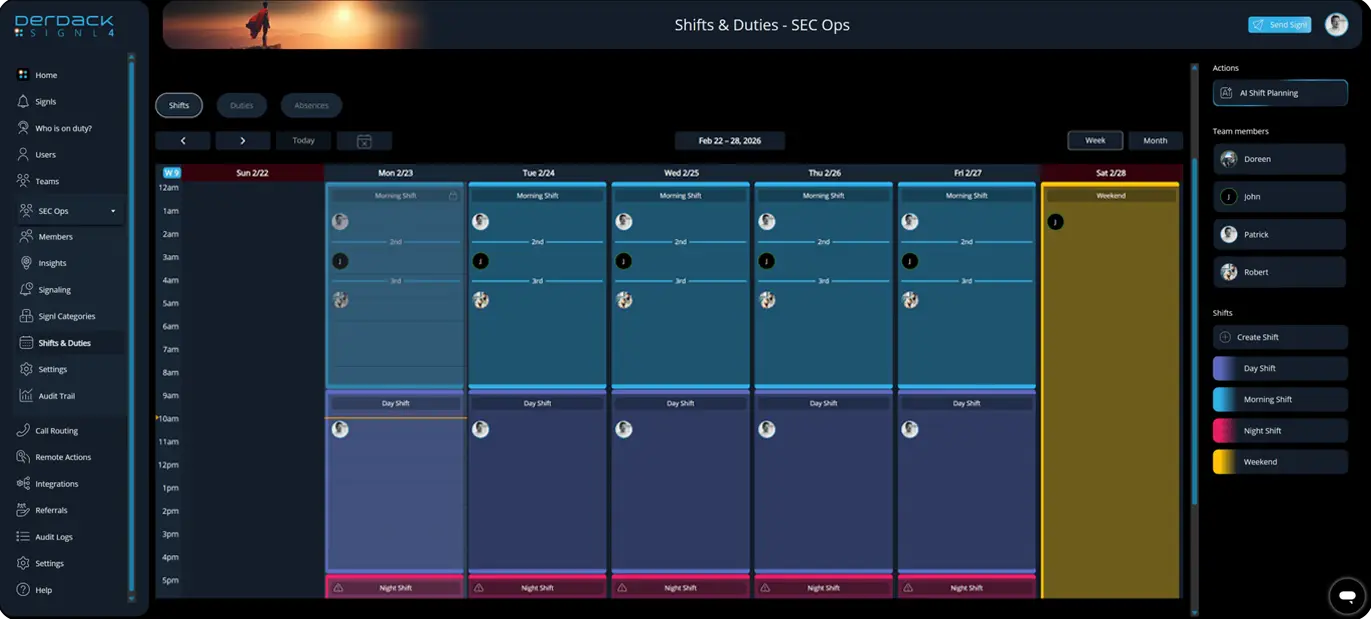
With SIGNL4, organizations can define escalation tiers directly inside on-call schedules.
For example:
- Tier 1 → Front-line support
- Tier 2 → Senior operations engineer
- Tier 3 → Engineering leadership
If Tier 1 does not acknowledge the alert within the defined timeframe, escalation automatically continues.
No manual chasing. No emergency phone trees. No uncertainty about who owns the incident.
The workflow keeps moving until somebody responds.
How to Configure Tier-Based Escalation in SIGNL4
Tier-based escalation is configured inside Shifts & Duties in the SIGNL4 web portal.
- Navigate to Shifts & Duties
- Create a new shift or edit an existing one
- Define the coverage schedule
- Scroll to the Staffing section
- Add escalation tiers using the plus icon
- Assign users into the appropriate tiers
For example:
- Tier 1 → Primary support
- Tier 2 → Backup engineer
- Tier 3 → Escalation manager
SIGNL4 automatically escalates alerts between these tiers when response timelines are exceeded.
This removes the single point of failure common in many manual escalation processes.
Step 3: Escalate Across Teams During Major Incidents
Some incidents require multiple teams.
Infrastructure outages may require engineering. Security events may require SecOps. Global incidents may require regional escalation.
Without structured escalation, incidents often stall between disconnected teams.
SIGNL4 supports cross-team escalation workflows so incidents can automatically move beyond the original support group when response thresholds are breached.
This helps organizations maintain momentum during:
- Major incidents
- After-hours emergencies
- Global operations
- Security events
- Manufacturing or OT disruptions
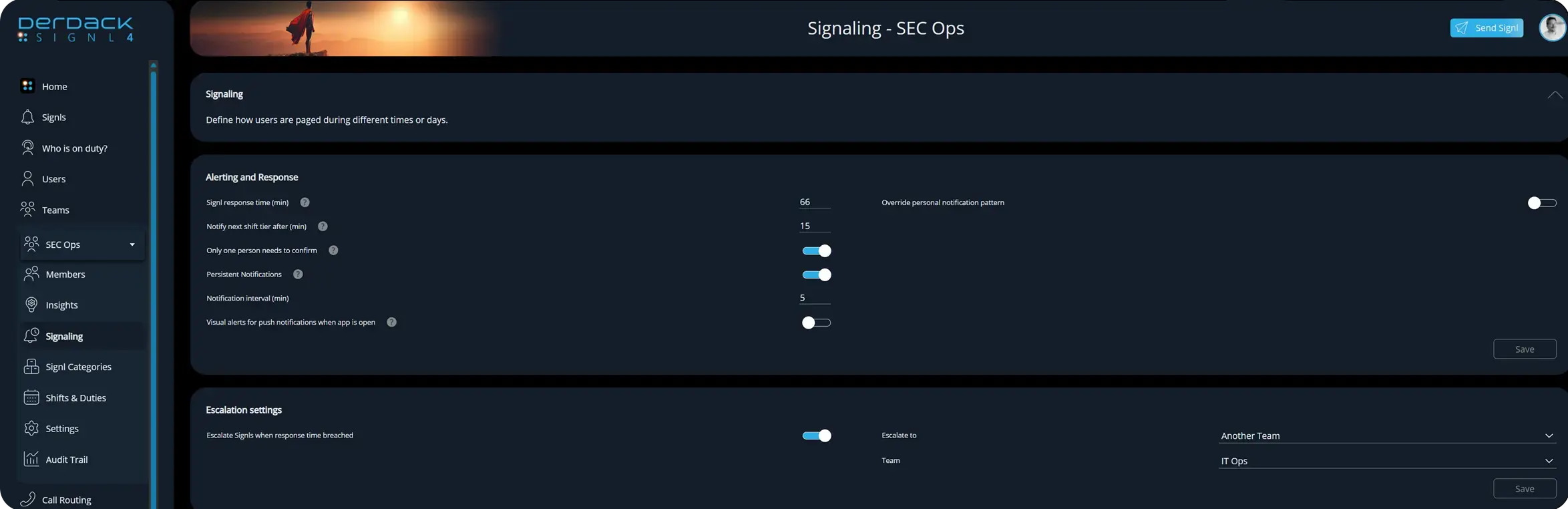
To configure cross-team escalation:
- Navigate to Teams > Signaling
- Scroll to Escalation settings
- Enable Escalate SIGNLs when response time breached
- Under Escalate to, select Another Team
- Select the target escalation team
- Save the configuration
Why This Matters
Modern operations teams face:
- More systems
- More alerts
- More complexity
- More distributed teams
- More after-hours operations
Most organizations already have enough monitoring.
What they lack is a reliable response process.
Automated escalation helps ensure incidents are:
- Seen
- Acknowledged
- Owned
- Escalated
- Acted on
before they turn into larger outages.
Final Thoughts
When incidents are handled manually, response quality depends heavily on whether the right person notices the alert in time.
That approach does not scale.
SIGNL4 introduces structure, accountability, and automation into incident response workflows.
Instead of hoping someone reacts, organizations can enforce response timelines automatically through persistent alerting, acknowledgment tracking, intelligent routing, and automated escalation.
Because detecting an incident is only the beginning.
What matters is ensuring someone takes action.
